Guide to Create a Community Profile


Here's how to create your Community profile on ProjectManagement.com:
Get Started on Mobile:
- Go to www.ProjectManagement.com
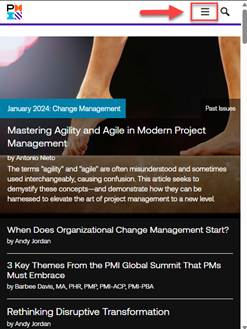
- Click on the menu icon on the top right of the home screen
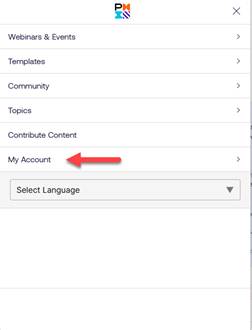
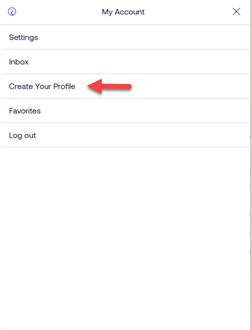
- Click on “My Account” to expand the options, and select “Create Your Profile”
- Click on the “Create Profile” button to begin the three-step process
Get Started on Desktop:
- Go to www.ProjectManagement.com
- Click on the arrow next to your account name at the top right of the page
- Select “Create Your Profile” from the drop-down menu options
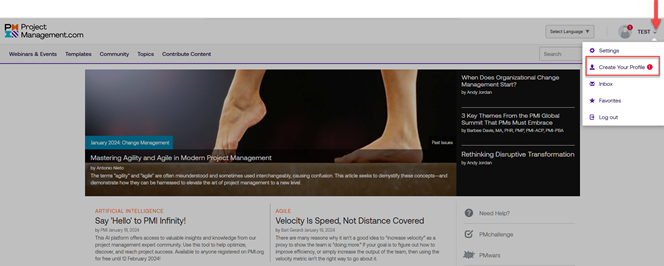
Create Your Profile:
- Complete the required fields and click on the “Continue” button to advance through the process
- After completing step three, click on “Create Profile” to complete the process
- Once you have created your community profile, you will be prompted to “Begin Tour” to complete your profile information and learn about the features.
- Upload a profile photo
- Add a short biography, specialties and certifications
- Earn badges
- Fill out a resume
- Give and/or receive recommendations
NOTE: These steps do not need to be completed in order to consider your profile “active”. They may be completed later and in any order.
Show Off Your Profile:
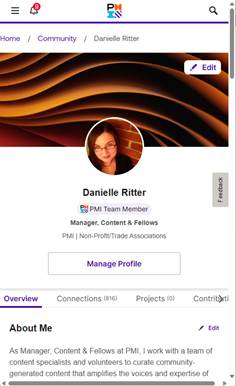
- Log in on www.ProjectManagement.com
- Click on the menu icon on the top left of the home screen
- Click on “My Account” to expand the options, and select “Profile” to open your profile
Comments (2)
Login/join to subscribe
ADVERTISEMENTS
|
"Life is to be lived. If you have to support yourself, you had bloody well better find some way that is going to be interesting. And you don't do that by sitting around wondering about yourself." - Katharine Hepburn |