Adobe Connect Webinar Troubleshooting Tips
Webinar Access Troubleshooting Tips
Why don’t webinar menu options and buttons display for me?
What browser should I use to view a webinar?
-
Webinars are compatible with the latest versions of Firefox, Chrome, and Internet Explorer. We recommend not using Internet Explorer 9 or below – please use Firefox or Chrome instead.
What type of network should I use to view a webinar?
-
While you can attend webinars using a wireless network, a wired network connection is recommended if you have a low-bandwidth Internet connection or a weak wireless signal.
The webinar is opening or running slowly, what should I do?
-
Close any open applications on your computer except for the browser window in which you’re viewing the webinar.
Can I view a webinar on my smart device?
-
We recommend attending the webinar from a laptop or desktop computer. While you can view a webinar from a smartphone or tablet, presentations and shared screens may be too small to read due to the limits of your device’s screen. Additionally, some webinar participation and presenting features might not be available on your device depending on its operating system version. If you want to use your smart device, check its app store before attending the webinar to see if a webinar-viewing app is available.
Webinar Audio Troubleshooting Tips
How do I listen to, and participate in conversations during a webinar?
-
All ProjectManagement.com webinars use VOIP technology for voice broadcasting. You will need a headset or microphone to speak during a webinar and you’ll use your computer speakers to listen.
How can I make sure my laptop is compatible with the webinar?
-
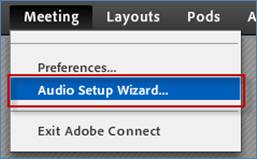
Use the Audio Setup Wizard, a guided process which you can access from the Meeting tab in the webinar, to check your computer’s audio and microphone settings to ensure they are properly configured at the start of the webinar.
I can’t hear the webinar presenter. What should I do?
-
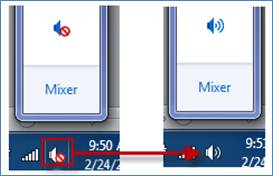
Check the speaker output on your computer or headset to make sure it is not muted. Make sure any headset or microphone jacks or USB connectors are fully inserted into the correct ports on your computer.
-
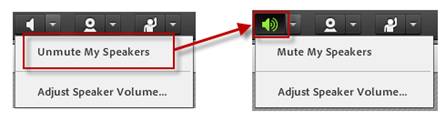
Check the green speaker icon in the webinar toolbar; make sure it is not muted.
I hear an echo in the audio or others can hear me instead of the presenter, what should I do?
-
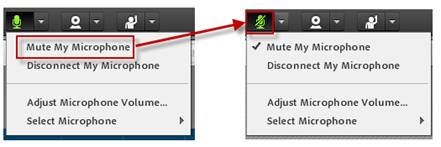
Mute your headset microphone on your computer while the webinar presenter is speaking.
-
Check the green microphone icon in the webinar toolbar, if it is on, mute it.
I hear static or interference in the audio, what should I do?
-
Move any mobile devices, tablets, or music players away from the computer that you’re using to participate in the webinar.
Webinar Communication Tips
How can I communicate with the presenter or other attendees during the webinar?
Here is how to communicate with the presenter of a webinar and other attendees during the webinar. Be aware that the presenter may have the webinar audio setup so that only he or she is broadcasting, to prevent all attendees do not speak at once.
-
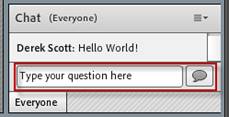
Type your questions or comments in the Chat pod so that the presenter and all attendees can read them.
-
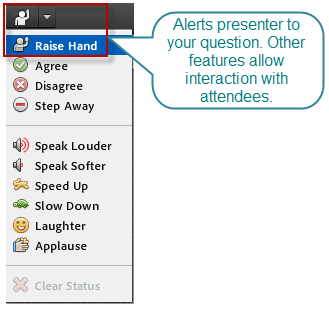
Click the Raise Hand option so that the presenter can see that you have a question. The presenter can delegate the microphone to you to speak to the audience. The presenter can also speak your question to the audience if he or she is providing an answer.
|
We're going to have the best-educated American people in the world.
- Dan Quayle
|